EPUB to KEPUB: Convert a Book and Put It on Your Kobo
For a single EPUB you want to read on a Kobo, start with the free kepubify EPUB to KEPUB converter or EPUB to KEPUB online converter. Choose your book, let it convert, then click the resulting filename to download a .kepub.epub file. That is the copy to transfer to your reader.
If you already keep your books in Calibre, you can stay there. Calibre 8.0 and later convert EPUBs to KEPUB when sending them to a Kobo, provided that option is enabled in the device settings. The old KoboTouchExtended plugin is no longer required. Calibre’s built-in Kobo conversion support.
For a one-off conversion without setting up a library, follow the browser route below.
Start with the EPUB you already have
Use a DRM-free .epub file and keep the original. Conversion makes a separate copy for the Kobo; you can retain the EPUB for other reading apps.
A Kobo can read ordinary EPUBs too. The reason to convert is to use its KEPUB reading features, including chapter reading statistics and, where the book supports them, pop-up footnotes. You do not have to convert a book that already reads the way you want. The KEPUB reading features supported by kepubify.
For the conversion check accompanying this guide, the input was a small, original two-chapter EPUB named Kobo Conversion Sample.epub. It included chapter links, a footnote and a small image. The steps below follow that file through the web converter; the USB transfer section follows Kobo’s documentation.
Choose the file and download the converted book
Open kepubify EPUB to KEPUB converter. Click the file-selection area beneath the version number and choose your EPUB. You can also drag the file into that area.
Leave the options on the right at their defaults for this first conversion. You do not need custom CSS or changes to punctuation and hyphenation to get a KEPUB copy.
Conversion starts after you select the file. When it finishes, the file’s row turns green and its name becomes a download link. Click that blue filename to save the converted book. Selecting the EPUB alone does not save the result to your computer.
The sample produced this output:
Input:   Kobo Conversion Sample.epub
Output:  Kobo Conversion Sample.kepub.epub
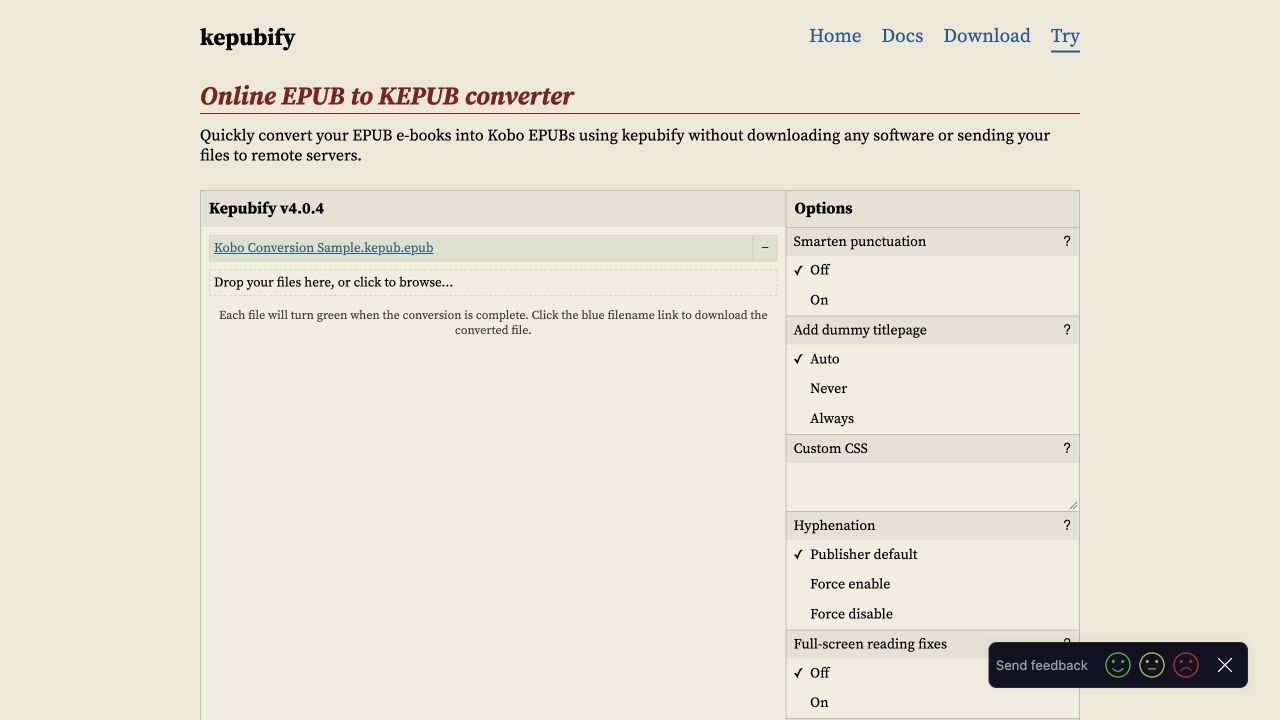
The downloaded sample retained both chapters’ body text, their link targets and the image file. That was a check of the converted package, rather than a test of how a particular Kobo displays it.
The web app says conversion happens in your browser without sending the book to a remote server. If the converter does not load, make sure JavaScript is enabled; the page requires it.
Keep the .kepub.epub ending
Find the downloaded book before connecting your Kobo. Its name should end in .kepub.epub. The double extension is intentional: keep it when copying the file.
That ending tells the Kobo to use its KEPUB reading engine. The conversion also adds internal text-position markers used for features such as highlighting and bookmarks. Simply renaming an untouched EPUB changes the filename without adding those markers. Kobo’s sideloading guidelines explain the engine selection; kepubify’s conversion code documents the added markers.
At this point, you should have two files: the original .epub and the downloaded .kepub.epub. Copy the downloaded one in the next step.
Copy the converted file to your Kobo
With the converted book saved, follow Kobo’s documented USB import process:
- Turn on the Kobo and connect it to your computer with a USB cable that supports data transfer.
- Tap Connect on the Kobo when the connection prompt appears.
- Open the KOBOeReader drive in Finder or File Explorer.
- Drag the downloaded
.kepub.epubfile onto that drive. - Eject the drive, then unplug the cable.
- Wait for the Kobo’s import to finish. Open My Books and select the book.
This imports a local copy onto that reader. It does not add the book to your Kobo account for syncing to other devices or apps.
Once the book opens, use its table of contents to jump to a chapter and check a passage you recognize. If it contains footnotes or images, inspect one before settling in to read. If you are replacing a copy you have already annotated, preserve the important notes before removing the old book; conversion alone does not transfer its reading history.
Author:AI Router
Link:https://www.airouter.me/blog/epub-to-kepub
Non-commercial reuse with attribution (CC BY-NC-SA 4.0).